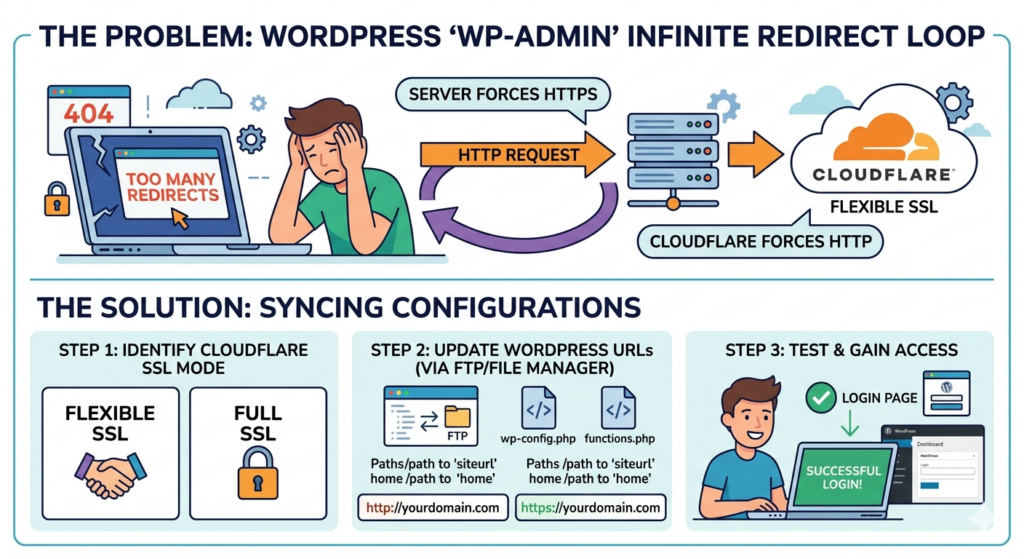
Getting locked out of your WordPress dashboard with a “Too Many Redirects” error is frustrating. This usually happens when your browser, your server, and your SSL provider (like Cloudflare) can’t agree on whether to use HTTP or HTTPS.
If you use Cloudflare and recently changed your SSL settings, this guide will help you fix the loop and regain access to your /wp-admin/ in minutes.
Why is the Redirect Loop Happening?
The loop occurs when your configuration is “crossed.” There are two common scenarios:
- Flexible SSL Conflict: Cloudflare connects to your server via HTTP, but your WordPress settings are forcing HTTPS. Cloudflare asks for HTTP -> WordPress says “Go to HTTPS” -> Cloudflare asks for HTTP again. Loop.
- Full SSL Conflict: Cloudflare expects an encrypted connection (HTTPS), but your site is strictly configured for HTTP.
Solution 1: Syncing Database URLs (Recommended)
If you can’t log in to change your settings, you can force the correct URLs through your functions.php file.
- Access your site files via FTP or File Manager.
- Navigate to
wp-content/themes/your-active-theme/functions.php. - Add these lines at the very top, right after the opening
<?phptag:
(Note: Use http if using Flexible SSL, or https if using Full/Strict SSL).
- Refresh your login page. Once you gain access, delete these lines from your file.
Solution 2: Cleaning up wp-config.php
Sometimes, hardcoded lines in your wp-config.php file override your database settings and cause conflicts.
Look for these lines:
- Open your
wp-config.phpfile in your root directory. - Delete them. This allows WordPress to use the values defined in your database (or the ones you set in Solution 1), which is more flexible for SSL handshakes.
Solution 3: The Cloudflare “Fix” (Flexible SSL)
If you must use Flexible SSL, you need to tell WordPress that it is “behind a proxy.” Add this code to the top of your wp-config.php file:
This snippet tells WordPress: “Even if the request looks like HTTP to you, it started as HTTPS at Cloudflare, so don’t try to redirect it.”
Summary Checklist for Success:
- Using Cloudflare Flexible? Set WordPress URLs to
http://. - Using Cloudflare Full/Strict? Set WordPress URLs to
https://. - Still Looping? Clear your browser cache or try an Incognito window, as redirect errors are often “stuck” in the browser’s memory.